
Working with labels
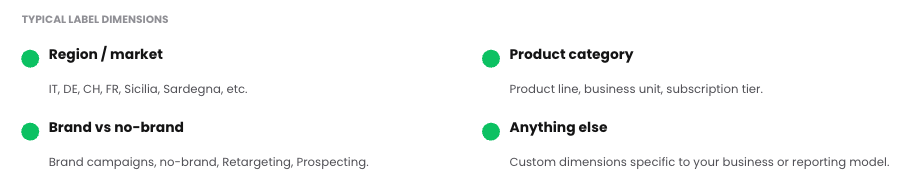
Labels are your own tags on campaigns. Use them to group campaigns by any dimension that matters to you: market, brand versus non-brand, product category, or objective. Labels are purely organizational: they change how you view and filter your data, never the data itself or how budget is treated.
Labels pay off in the Performance view: filter by a label to isolate one group, or group the Performance Data Table by label to compare groups side by side, for example brand versus non-brand performance in one view.
The workflow
1. Define
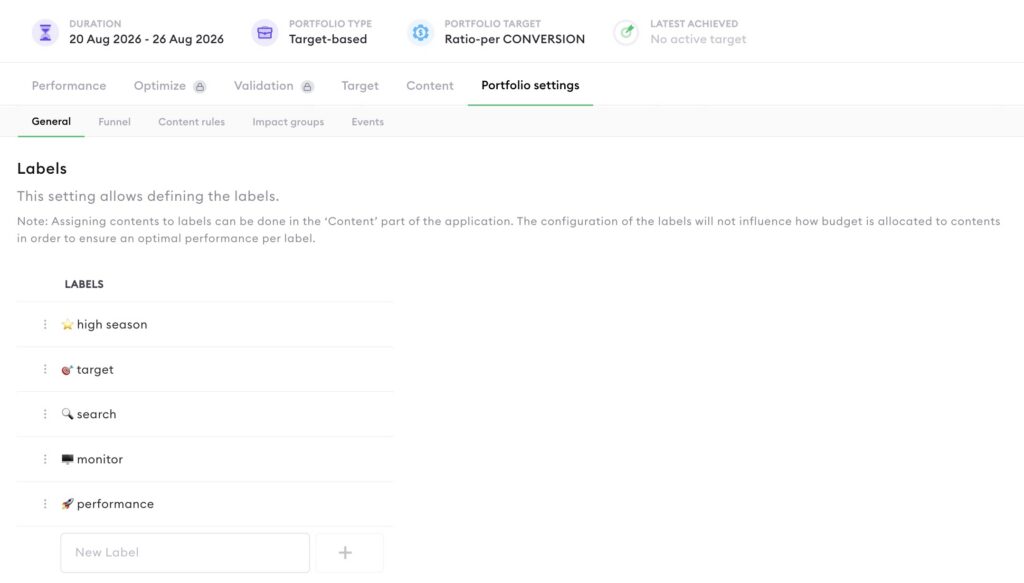
Labels are created under Portfolio settings → General, in the Labels section. Type a name in the “New Label” field and add it. Emojis work and make labels easy to spot, for example “⭐ high season” or “🎯 target.”
2. Assign
Campaigns are assigned to labels in the Content tab: each content has a Label column where you select its label.
3. Use
In the Performance view, filter by label via the Filters panel, or group the table by label. Label filters can be part of saved presets (see Reading the Performance view).
Tips
Keep the label set small and consistent; a handful of labels everyone understands beats twenty that overlap. And agree on the labeling logic before assigning, since labels are only useful for comparison if they’re applied consistently across all campaigns.
Can’t find the answer to your question?
No problem, you can submit your question to us here.
Contact