
Working with events
Events let you register moments that influence your performance, such as a product launch, a seasonal sale, a price increase, or a tracking issue. Registered events appear as markers on the “Metrics Over Time” chart in the Performance view, so when someone looks at a spike or dip weeks later, the explanation is right there on the timeline.
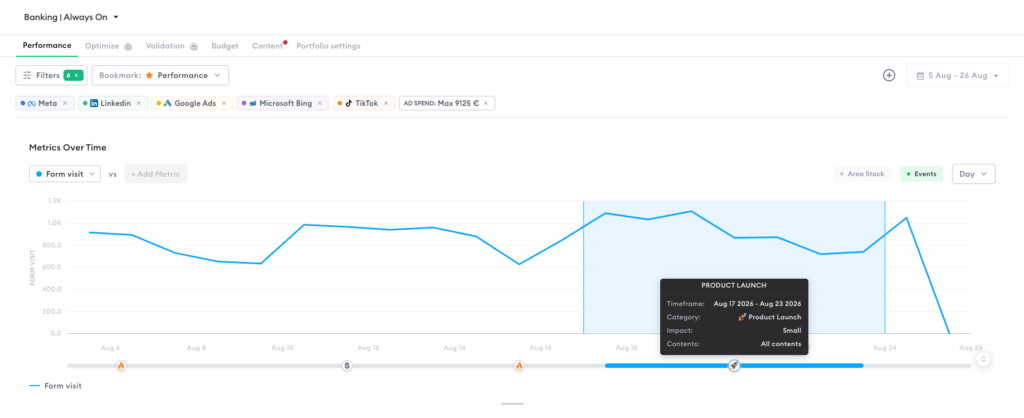
Where to find it
Events are created and managed under Portfolio settings → Events. In the Performance view, the “Events” toggle above the chart switches the markers on and off.
Creating an event
- Go to Portfolio settings → Events and click “Create event.”
- Give the event a name and set its timeframe.
- Choose a category, for example Product Launch, Promotion and discounts, Price increase, Brand Awareness, positive or negative external effects, or Tracking issues.
- Set the impact size (small or large) and choose which contents are affected: all contents, or a selection.
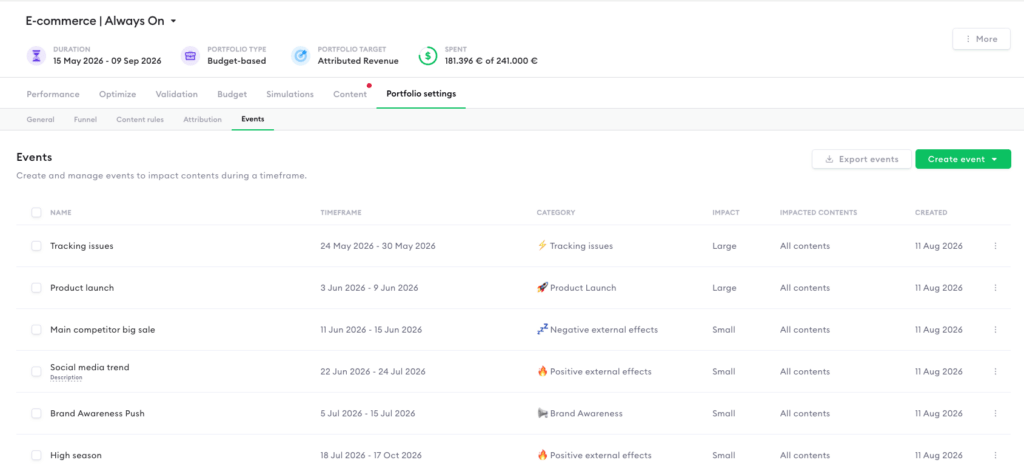
The best habit is to log events as they happen. An event registered in the moment takes thirty seconds; reconstructing three months later why conversions dipped in May takes much longer. Events can also be exported as a list.
Events on Nexoya Premium
On Nexoya Premium, events do more than annotate the timeline: the AI accounts for them in its predictions, so an unusual period, like a big sale or a tracking outage, doesn’t distort the optimization.
Can’t find the answer to your question?
No problem, you can submit your question to us here.
Contact